

elegant themes

How to install WordPress without a domain name

| January 16, 2011 | 41 Comments

This is one of those life-changing, super-awesome tips that I wish I had known about years ago. Note that this only works on Windows, and I’ve only tested it on Windows 7.

Here’s the scenario: you’ve got a client who has a website up and running on their domain name, www.mysite.com. You are creating a new WordPress site for them, but their old site needs to stay up until the very last minute. It would be great to be able to get their whole WordPress site installed and ready to go on a live server (i.e. not your localhost on your computer), and switch the domain’s DNS and voila – the new site replaces the old site almost immediately.

But you can’t really install and work with WordPress on a server that doesn’t have a domain name pointed at it. So here’s how you can fake this by making your computer think that the new site installation should be displayed as www.mysite.com:

  1. Install WordPress on the new server via Fantastico, Quick Install, or something like that.
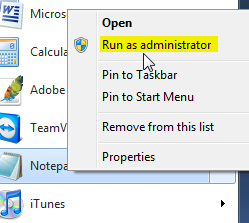
  2. Open Notepad as administrator by right clicking on it and selecting “run as administrator”
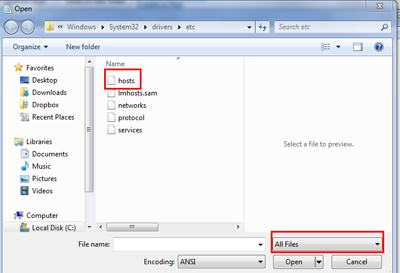
  3. In Notepad, go to File >Open and find the following file in Windows: ?C:\Windows\System32\drivers\etc\hosts. If you see an empty “etc” folder, select All Files (see the screenshot below)
  4. Add the following line to the end of the hosts file:
    123.45.678.90 mysite.com
    Where 123.45.678.90 is the IP address of the new server, and mysite.com is the domain name that powers the existing site.  Change the IP address and mysite.com to the new IP and new website URL.
    Here’s a screenshot of how it should look:
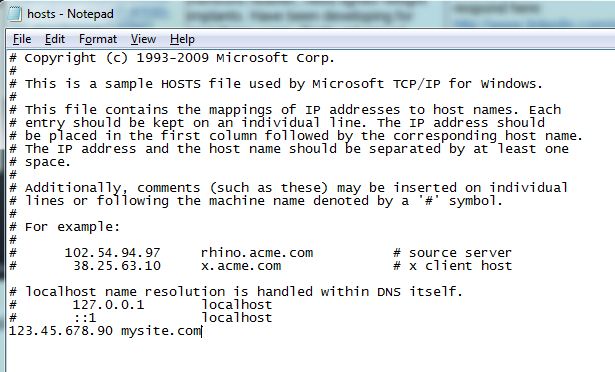
  5. Windows hosts file for IP redirection
  6. Save the file. Now visit mysite.com in your browser, and you’ll see your new WordPress installation.

Hat tip to Mark Kaplun for this amazing trick.

0saves
If you enjoyed this post, please consider leaving a comment or subscribing to the RSS feed to have future articles delivered to your feed reader.

Tags: , ,

Category: Tips

About Miriam Schwab: Miriam is the friendly CEO of illuminea, a WordPress design and development agency. Miriam is a huge fan of WordPress and has been using it for over five years now. In addition, Miriam and her team have been organizing the local Israeli WordCamp conferences for the past few years. View author profile.

Elegant WP Themes

Comments (41)

Trackback URL | Comments RSS Feed

  1. Mike Little says:

    Hi Miriam,
    This technique is not Windows only. It works on Linux/Unix and Mac (OSX) as well as all versions of Windows back to 3.1.
    On the non-windows systems the file is /etc/hosts (which is where Microsoft copied the idea from).
    It is worth pointing out that in this situation, your client would not be able to see the new site unless it was on your machine. Or unless they made the same changes themselves, which is likely beyond most clients.
     
    Mike

    • Miriam Schwab says:

      @Mike good to know that this can be done on non-Windows as well. And you’re right about the client not being able to see the site, but sometimes the client can deal with this kind of thing, or we can send screenshots. Or we can do what we did now, which is develop on development server so the client could see it, and then we move it to the new server, make sure it’s working properly with this trick, and then make it live.

  2. [...] How to install WordPress without a domain name (WP Garage) [...]

  3. [...] Schwab of WPGarage.com has a neat little tip that explains how to install WordPress without using a domain name. The trick involves editing the [...]

  4. Great tip, Miriam!!!  Wish I would have read this two weeks ago!  Thanks.

  5. Ryan says:

    Yay! Featured in the WP dashboard :)
     
    This is seems to be a lot easier on Mac and Linux than it is on Windows. It always annoys me when clients require me to muck around with my hosts file.
     
    Thanks for the instructions though, I’ll now know where to go to figure it out each time (I always forget the process and have to scour the internet for more information).
     

  6. Andrea says:

    Thanks for a great article! Does this only work for sites with a dedicated IP address?


  7. dgrut says:

    ah.. then mysite.com can be replaced by any kind of term?
    how to set the file on the server?

    • joecr says:

      As the directions indicate you enter the IP address you want your computer to be forced to point to, then you add some white space after it, then you add the domain name you want pointing to the IP address you just entered. It will work as long as you are pointing to the correct IP address, have entered the correct domain name, & do not have a proxy server on your network forcing you to use a specific set of DNS servers for all DNS requests.

  8. Nice one Miriam..This is what I usually do when working with any client Wp blog migration stuff… :)

  9. Chen Levkovich says:

    You can ask the client to edit his hosts file to direct to the new website

    • Miriam Schwab says:

      @Chen, some clients could handle that. Others might break their computers in the process. In most cases, it’s better not to lead clients into the guts of their Windows files.

  10. Sandy says:

    This is great.  I’m going to test it on my own since I’m going to be changing my own site.  Figure that way if I mess things up, it will be my site and not a client site.

  11. my hint: write www and non www variant on the same line, e.g.
    123.45.67.89 example.com http://www.example.com
    this will point both versions to the same IP

  12. Yehuda Deutsch says:

    1. on Windows 7 (maybe also on vista, I never checked) you need to open this file with administration permissions in order to save changes.
    2. on linux you have more then few options, I chose to install bind, and I manage it with webmin.
    3. a better solution will be using the firefox addon that manages its own hosts files where you can switch the domain between IP’s.
    https://addons.mozilla.org/en-US/firefox/addon/switchhosts/

  13. Great tip, thanks for sharing it.  Sending it to Delicious right now!

  14. Barry says:

    This is a great tip, and it can be used (with an additional trick) for another purpose–moving your WordPress install from one webhost to another.

    The trick here is that you can get both the old host and the new host using the same MySQL database so that any new comments or changes aren’t lost in the shuffle when you switch.

    1. Copy your MySQL database from the old host to the new host.

    (Any comments or blog edits between now and step #2 will be lost)

    2. Change your wp-config on the old host. It should have read:

    define(‘DB_HOST’, ‘localhost’);

    Make it read instead:

    define(‘DB_HOST’, ‘www.xxx.yyy.zzz’);

    where the number is the IP address of your new server.

    3. Test things both without the host file trick shown here and then with the host file trick.

    4. Switch the DNS over when you are satisfied.

    5. When it has been long enough for everything to propagate, let the old host go.

  15. Hannit says:

    I usually do it a bit different.
    1/ install everything on a subdirectory of the server (assuming no server change is required).
    when all is set to go:
    1. use search & replace wordpress plugin to change all newly created image links, post links, etc and move to the new location
    2. move the index.php and .htaccess as described here
    The advantage of this method – it enables the client to see the siet and approve every bit before going online (usually clients are not really excited about changing their hosts files)

  16. Scott Elkin says:

    Aggree with Hannit.  I always put their site on a live subdomain so that they can approve it before it goes live.  Then it is just a few queries in mysql to replace the old domain with the new domain in the wp_posts table and wp_options.

  17. Thanks for this Miriam; it’s always good to have an alternate.
    I agree with Hannit and Scott. Having the site ‘live’ in a subdirectory on the client’s server makes getting the site a quick, 5 minute job.
    I use this method, learned from Bill Erikson: http://www.billerickson.net/how-to-move-your-wordpress-website/

  18. PS: Sorry about the typo:  meant to say it makes getting the site LIVE a 5-minute operation. The other benefit of course, is the client can always see how it’s coming (Never set them up with an admin acc’t before you’re done, though :) )

  19. Miriam Schwab says:

    @Hannit, @Scott and @Bill – it’s not always worth it to set up a client’s site in a subdirectory, like if the new site is going to be on a different server. It’s interesting that you all do development on a client’s server: we prefer to do development on our own server, then push the site to where it’s going to go live, and keep the dev version as long as possible, since clients seem to always come back with issues and/or new feature requests. This way we have something to work off of.

    • That’s a good point, Miriam. If the client will be moving to a different server, I’ll do the development on my own server and move it when it’s ready to go live.
      I find that having it in a subdirectory on the client’s server makes the transfer go a bit quicker. And I do a backup of the site and db to have on hand if needed later.

  20. Jason Hoskings says:

    Hi there,
    Ok this looks like a great solution but unfortunately it does not appear to work for me. I have done the following:
    - Have a old version of a WordPress site on one server
    - created new hosting and pointed the domain to the new hosting server
    - Setup a fresh install of wordpress on the new server to build the site
    ALL THE ABOVE IS FINE
    However I want to be able to go back to the old server, login to wordpress and pull some of the settings out when I need to. I was hoping to put the old server IP address in the host file as described and VOILA I can login and browse the old site as normal.
    Unfortunately I just end up back at the new site for some reason.
    Any ideas why would be gratefully received.
    Many thanks,
    Jason

    • joecr says:

      If you are behind a proxy server this will not work as the proxy server is doing the DNS request. You would have to change the hosts file on the proxy server for this to work. That is the only way I’m aware of that would prevent this from working.

  21. Jason Hoskings says:

    I hope I haven’t completely misunderstood how this works. Any help would be most welcome.
    Thanks again,
    Jason

  22. Russ says:

    You can fix it by adding this code http://codex.wordpress.org/Changing_The_Site_URL to the wp-config.php file.
     
    Russ

  23. Kindness says:

    How do you make the entry in the hosts file if the address you want to redirect locally to is 123.123.123.123/~mysite.com/ (123.123… would be the IP of my new host) – do I include the http://?

    • joecr says:

      The hosts file can only direct a Fully Qualified Domain Name AKA FQDN to an IP address as an A record would. The server 123.123.123.123 would need to know to point requests for that domain to a specific folder.
       

  24. Chad Carton says:

    Awesome!  I did this a few years ago and it was much harder to find this solution at that time and should have made a post on it then…  I’d probably be a hero by now to! – LOL

    This works great and if you need something from the old site, just comment out the host file, save it (less than a minute) get what you need, un-comment, save it again and get back to work.

    Thanks for the refresher as it was a little foggy but now it’s time to go build a new site, THANKS!;-) 

  25. wpbandung says:

    This is a very simple answer for my problem. I got similar situation when I have to developed online shop for a client. 

    thanks
     

  26. D London says:

    oh, I wish I came across this post a week ago, couldn’t figure out how to do this. Ended up building a site on my own server and then moving it, asked hostgator transfer team for help, followed their instructions. All done well, had a chance to check if everything’s fine before DNS change. Cost me few sleepless nights though, didn’t want to mess it up :)
    Thanks for great advice, going to try this method in a future.

  27. CaptainCheckout says:

    Ok I have created the database and user and installed wordpress through CPanel. I changes the host file to point the domain to the new server IP Address. I enter the domain name in the browser and expect to be presented with the wordpress install page to complete the wordpress installation but just get a blank page??? I can’t finish the WordPress install and therefore can’t build the site?

    Any ideas anyone?

    • Murray says:

      Checkout:
      Did you do WP install using Fantastico or manually?
      Is this the first time you have installed WP? If so I suggest you reinstall using Fantastico to ensure you have all the settings correct.

      I assume you have set up a dummy domain name to install it to.

      Make sure that if you have put the non www version of the “domain” name into the hosts file, that you also put that in the browser.

  28. Daz says:

    Just add last line in Host file in Notepad to read:
    IPADDRESS http://www.sitetobe.com then put in browser: http://IPADDRESS/~username/

Leave a Reply


If you want a picture to show with your comment, go get a Gravatar.

More in Tips (14 of 85 articles)